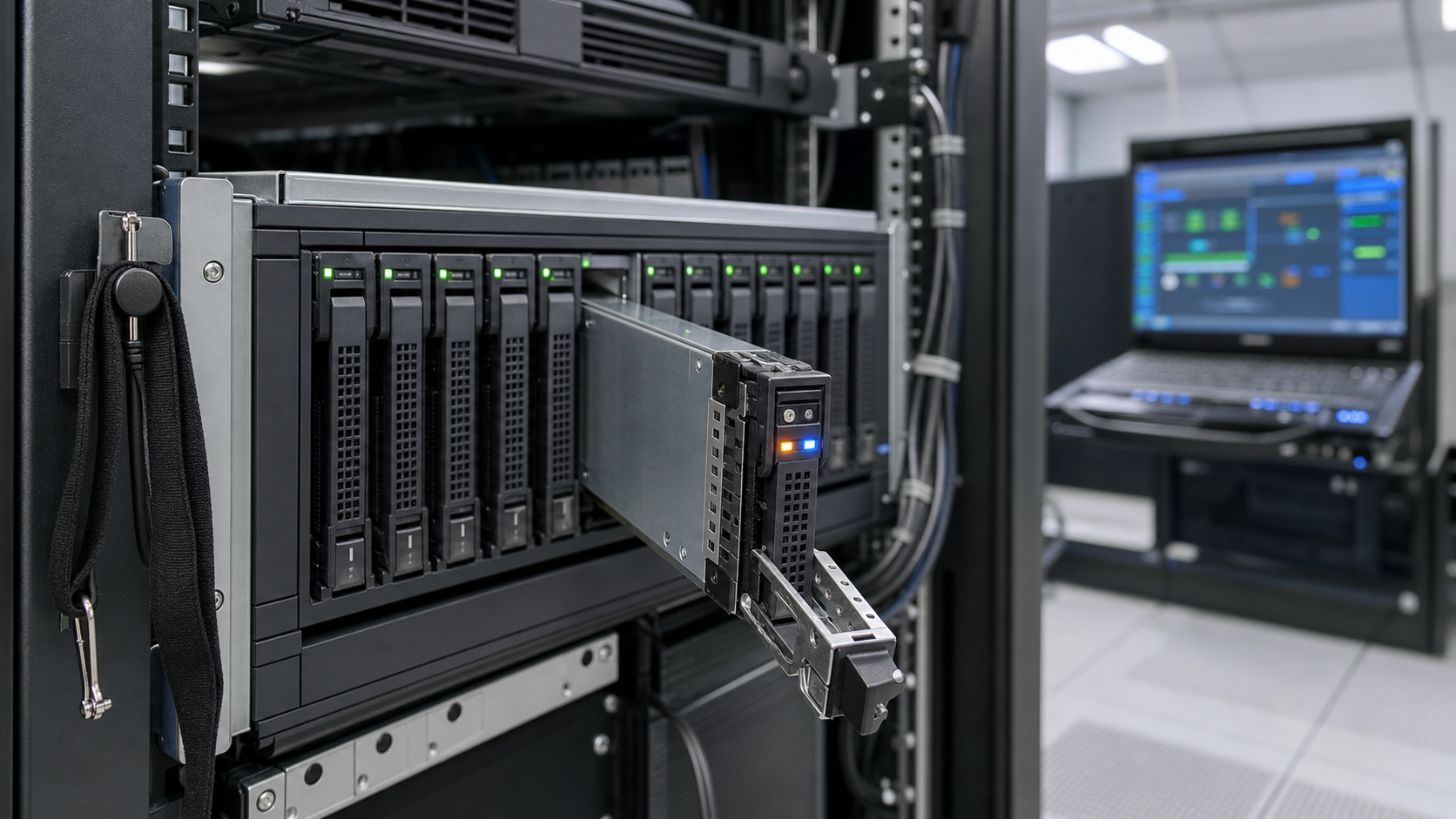
Before replacing an enterprise drive in a RAID array, you must identify the failing drive, back up critical data, verify controller and drive compatibility, prepare the replacement drive (test and clear metadata), configure rebuild settings (priority, rate), monitor the rebuild, and perform post-rebuild verification including consistency check and SMART health check.
Key takeaways
- Always back up data before initiating a RAID rebuild, even with redundancy.
- Use only drives listed in the controller's VCL or server manufacturer's approved list.
- Monitor rebuild progress and perform post-rebuild verification to ensure data integrity.
Identify the Failing Drive
Before any replacement, confirm which physical drive has failed or is predicted to fail. Use the RAID controller management utility (e.g., MegaRAID Storage Manager, HP Smart Storage Administrator, or Dell OpenManage) to locate the exact slot, enclosure, and serial number. Cross-reference the reported logical drive (virtual disk) with the physical disk. Note that some controllers show predictive failure alerts (SMART) before actual failure; treat these proactively.
If the system is running, check the OS-level logs (e.g., dmesg, event viewer) and the controller event log. For servers with multiple enclosures, use the enclosure ID and slot number to avoid pulling the wrong drive. Always label the drive physically after identification.
Back Up Critical Data
Although RAID provides redundancy, a rebuild is a high-stress operation that can trigger additional failures. Before proceeding, ensure a recent full backup of all critical data exists. For databases and virtual machines, consider a crash-consistent backup or snapshot. If the array is degraded (one drive failed), the rebuild is the only protection against a second failure; do not skip backup.
For arrays with multiple parity (RAID 6, RAID 60) or hot spares, the risk is lower but not zero. Backup to an independent medium (tape, cloud, or separate storage) that is not part of the same RAID group. Verify backup integrity with a test restore if time permits.
Check Controller and Drive Compatibility
The replacement drive must be compatible with the RAID controller and the existing drive specifications. Use a drive model listed in the controller's vendor compatibility list (VCL) or the server manufacturer's approved parts list. Mismatched firmware, sector size (512e vs. 4Kn), or interface speed can cause rebuild failure or performance degradation.
If the exact model is unavailable, choose a drive with identical or larger capacity, same rotational speed (for HDDs), and same interface (SATA/SAS). For SSDs, ensure the same form factor (U.2, U.3, M.2) and protocol (NVMe, SAS). Some controllers require the replacement to be at least as large as the smallest drive in the array. Always check the controller's manual for specific requirements.
Prepare the Replacement Drive
Before insertion, the new drive should be tested and prepared. Run a full surface scan or a short self-test (DST) using the drive manufacturer's tool or the controller's utility. This ensures the drive is not DOA and has no latent defects. For SAS drives, check that the drive is not in a 'ready' state with foreign configuration; clear any existing metadata if prompted.
Do not insert the drive while the system is running if the controller does not support hot-swap. For hot-swap bays, follow the server's procedure: wait for the status LED to indicate safe removal, then insert the new drive. The controller should automatically detect it and mark it as a spare or ready for rebuild. If not, manually initiate the rebuild.
Configure Rebuild Settings
Most RAID controllers allow you to adjust rebuild priority (low, medium, high) and rate. For production systems, set rebuild priority to low or medium to minimize impact on I/O performance. Some controllers support 'rebuild with I/O' throttling. Consider scheduling the rebuild during off-peak hours if the system is critical.
If the controller supports it, enable 'rebuild resume' in case of power loss. Also, check if the controller allows manual assignment of a hot spare. For large arrays (over 10 TB), rebuild time can be many hours; plan accordingly. Monitor the rebuild progress via the management utility.
Monitor Rebuild Progress
During rebuild, monitor the controller logs and system performance. Watch for media errors, uncorrectable read errors, or drive timeouts. If the rebuild pauses or fails, investigate immediately. Common causes include a second drive failure, bad blocks on the replacement drive, or controller firmware bugs.
Use the controller's event notification (email, SNMP) to alert you of completion or errors. For critical arrays, have a spare replacement drive on hand in case the rebuild fails. Do not reboot the server during rebuild unless absolutely necessary.
Post-Rebuild Verification
After the rebuild completes, verify the array status (should be 'Optimal' or 'Normal'). Run a consistency check or patrol read to ensure data integrity. Some controllers automatically perform a 'verify' after rebuild; if not, initiate one manually. Check the drive's SMART attributes to confirm it is healthy.
Test application access to the data. For databases, run a consistency check (e.g., DBCC for SQL Server). Update the drive inventory records with the new serial number. Finally, consider scheduling a proactive replacement of the remaining drives if they are of similar age.
Document the Process
Record the date, drive serial numbers, controller settings, and any errors encountered. This documentation helps in future troubleshooting and warranty claims. If the failed drive is under warranty, follow the manufacturer's RMA process. Keep the failed drive until the replacement is fully verified and the warranty claim is accepted.
Update your disaster recovery plan with lessons learned. For environments with many servers, standardize the replacement procedure to reduce human error. Consider using a checklist that includes backup verification, compatibility check, and post-rebuild testing.
Frequently asked questions
Can I replace a failed drive without rebooting the server?
Yes, if your RAID controller and server chassis support hot-swap. Most enterprise servers do. Follow the proper procedure: ensure the drive is not in use, wait for the status LED, and insert the new drive. The controller should detect it automatically.
What if I cannot find the exact same drive model for replacement?
Use a drive with identical or larger capacity, same interface (SATA/SAS), same rotational speed (for HDDs), and same form factor. Check the controller's compatibility list. Some controllers require the replacement to be at least as large as the smallest drive in the array.
How long does a RAID rebuild take?
It depends on the array size, drive speed, controller capabilities, and rebuild priority. For a 10 TB array, it can take 10-20 hours. Larger arrays may take days. Set rebuild priority to low during business hours to minimize impact.
Verification sources
For a purchase decision, verify the current manufacturer datasheet and the target server or storage platform guide.